

Prevent This: The Phishing Email That Actually Comes From Apple
Scammers found a way to send phishing emails from Apple's own servers. Here's how to spot them.

Welcome to Prevent This, our weekly community newsletter covering cybersecurity for everyone. If you found us through Intruvent Edge, our bi-weekly technical deep dive, welcome. Both live on the same Substack. Feel free to share either one. We’re glad you’re here. Please share this newsletter if you find it useful.
You know the drill. You get a suspicious email, you check the sender address, and if it looks fake, you delete it. That one simple habit has protected millions of people from phishing scams for years.
It doesn’t work anymore.
Scammers have figured out how to send phishing emails that genuinely come from Apple’s own servers. The sender address is real. The email authentication checks all pass. Your spam filter waves it right through. And the message inside tells you that someone just bought an $899 iPhone with your Apple account.
Your heart rate spikes. You call the number in the email. And now you’re talking to a scammer.
What Happened?
In April 2026, security researchers at BleepingComputer and Malwarebytes documented a phishing technique that abuses Apple’s own notification system to deliver scam emails from Apple’s legitimate email address: appleid@id.apple.com.
These emails are not spoofed. They are not faked. They are real Apple notifications, triggered by real Apple systems, delivered from real Apple servers. Every email authentication check (SPF, DKIM, DMARC, for the technically curious) passes with flying colors. Gmail, Outlook, Yahoo, and every other email provider treat them as legitimate because they are.
The scam has already cost people real money. Dorothy, a woman in her 60s, received one of these emails in early April. A scammer who already knew her personal details convinced her over the phone that her accounts had been compromised. He coached her through a series of steps and told her to drive to the bank to withdraw $15,000. A bank teller recognized the signs and intervened before Dorothy handed over the cash.
Not everyone is that lucky.
Why Should You Care?
Apple has 2.5 billion active devices worldwide. If you own an iPhone, iPad, Mac, or Apple Watch, you are a potential target.
Apple is now the #2 most impersonated brand in phishing attacks, accounting for 11% of all phishing attempts in Q1 2026 (Check Point Research).
At least five distinct Apple scam campaigns were running concurrently in April 2026.
Tech support scams (the category this falls into) cost Americans $924.5 million in 2023 alone (FTC). Vishing (voice phishing) attacks increased 442% in 2024.
Apple has not acknowledged or patched the flaw that makes this possible.
How Does This Work?
Think of Apple’s notification system like an automated receptionist. When you update your account information, the receptionist sends you a polite confirmation email: “Hi [Your Name], your Apple Account was updated.”
The receptionist doesn’t check what your name actually says. It just reads whatever is in the name field and puts it in the email.
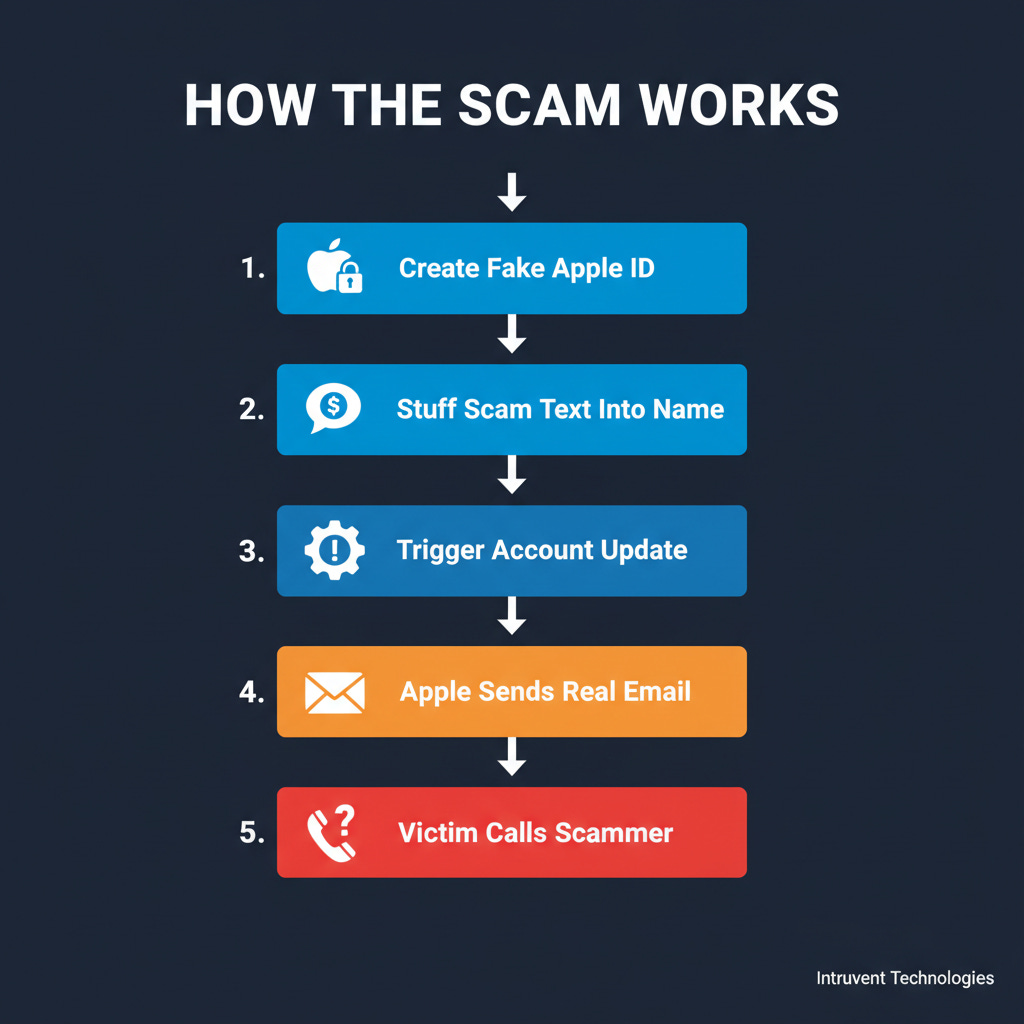
Scammers figured this out. Here’s what they do:
Create a new Apple ID using a throwaway email address.
Set the first name to something like: “User 899 USD iPhone Purchase Via”
Set the last name to something like: “Pay-Pal To Cancel Call 1-802-353-0761”
Change the shipping address on the account. This triggers Apple’s automated notification system.
Apple’s servers dutifully send out an email that reads: “Dear User 899 USD iPhone Purchase Via Pay-Pal To Cancel Call 1-802-353-0761, your Apple Account was used to sign in...”
The email lands in your inbox looking like a legitimate Apple alert. Because it is one. The scam message is smuggled inside Apple’s own greeting line.
If you call the number, you reach a scammer running a tech support con. They will tell you your account has been compromised. They will ask you to install remote access software, hand over login credentials, or (like Dorothy’s case) withdraw cash.
The reason this works so well is that it weaponizes the one thing you were taught to trust: the sender address. Every guide, every tip sheet, every cybersecurity awareness training tells you to “check the sender.” When the sender is actually Apple, that advice breaks down.
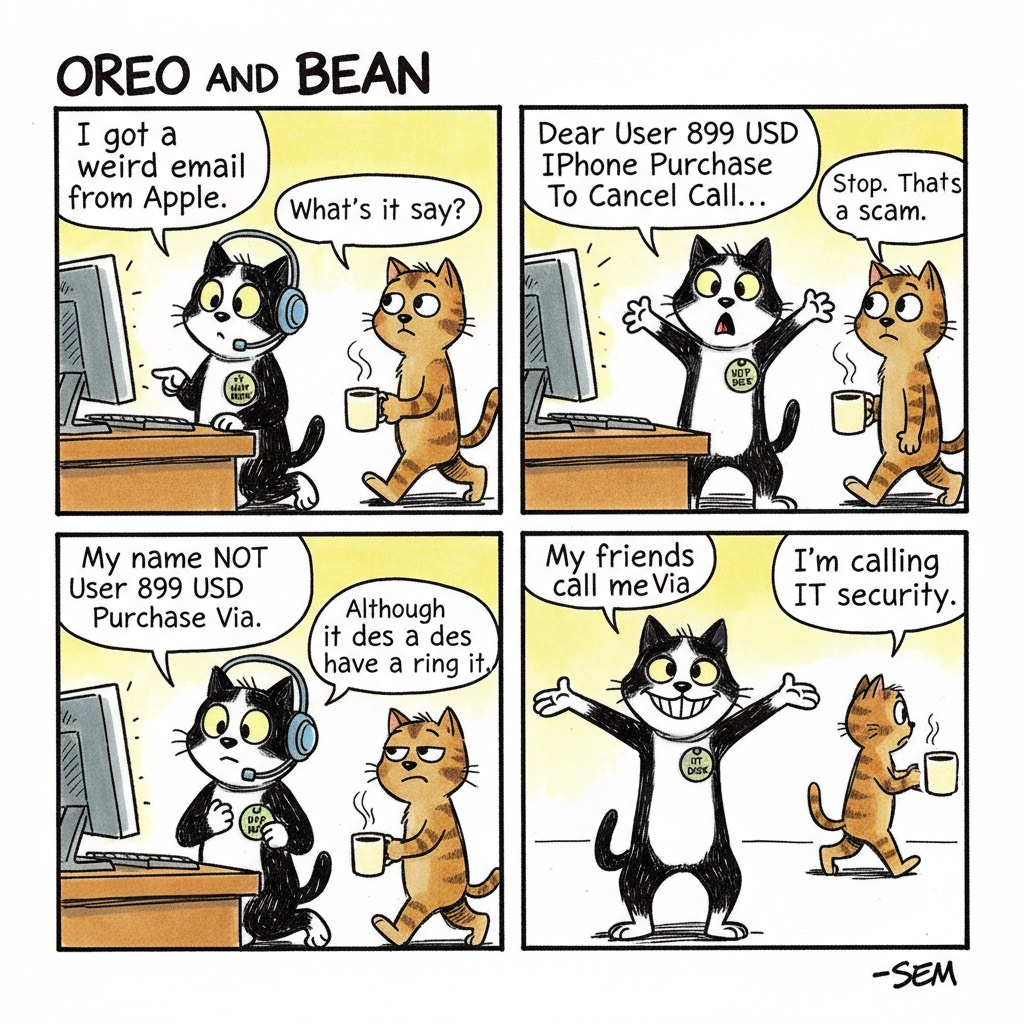
What Can You Do?
Step 1: Never Call a Phone Number From an Email
This is the single most important rule. Apple will never put a phone number in an email and ask you to call it. Neither will your bank, the IRS, or any legitimate company. If an email includes a phone number and urgency, treat it as a scam by default. If you want to call Apple, go to support.apple.com and find the number yourself.
Step 2: Check Your Actual Purchases
If you get an email claiming someone bought a $899 iPhone with your account, do not click anything in the email. Instead:
On your iPhone or iPad: Open Settings, tap your name at the top, tap Subscriptions or Media & Purchases. Check your purchase history directly.
On a computer: Go to reportaproblem.apple.com and sign in. This shows every real purchase on your account.
Check your bank or credit card statement. If there’s no $899 charge, there was no $899 purchase. Close the email.
Step 3: Read the Email Carefully
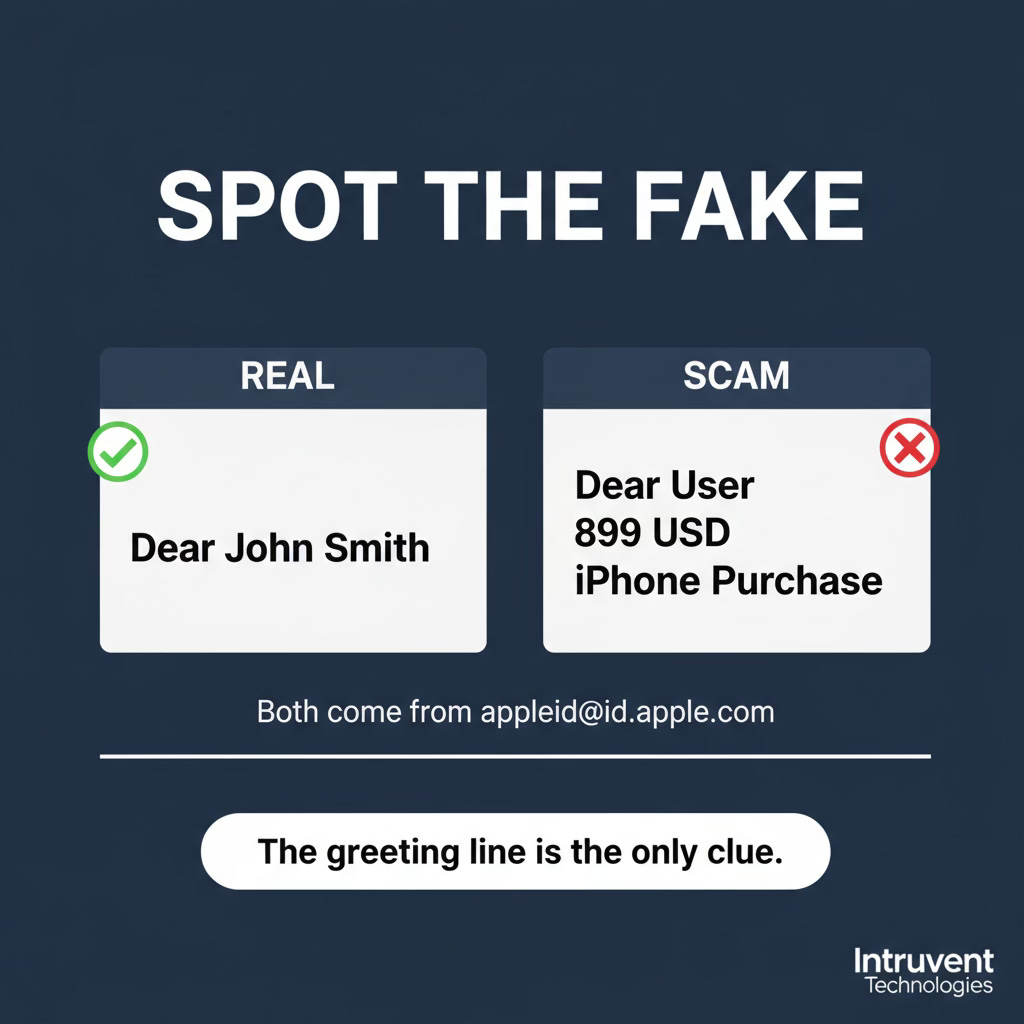
Even though these emails come from a real Apple address, the scam text is stuffed into the greeting line. Legitimate Apple emails address you by your actual name. If the greeting reads like a sentence fragment about a purchase or a phone number to call, that is the tell. Real Apple notifications say “Dear [Your Name],” not “Dear User 899 USD iPhone Purchase Via Pay-Pal.”
Step 4: Turn On Two-Factor Authentication
If you have not already, enable two-factor authentication on your Apple account. This protects you even if a scammer somehow gets your password.
iPhone/iPad: Settings → [Your Name] → Sign-In & Security → Two-Factor Authentication
Mac: System Settings → [Your Name] → Sign-In & Security → Two-Factor Authentication
Step 5: Report It
Forward phishing emails to reportphishing@apple.com. Apple does investigate these reports, and enough reports from users may push them to fix the name-field vulnerability that makes this attack possible.
You can also report the scam to the FTC at reportfraud.ftc.gov.
The Bottom Line
“Check the sender address” used to be reliable advice. For this scam, the sender address is legitimate. The email is legitimate. The only thing that is fake is the message smuggled into the greeting line.
Three things to remember:
Never call a phone number from a suspicious email. Look up the number yourself.
Verify purchases directly. Check your account or your bank statement, not the email.
Read the greeting line. If your name looks like a sentence about a purchase, delete the email.
Apple has 2.5 billion devices in the world and has not yet fixed this flaw. Until they do, you are your own last line of defense. Share this with anyone who uses Apple products.
Sources
BleepingComputer: Apple account change alerts abused to send phishing emails (April 2026)
Malwarebytes: Real Apple notifications used to drive tech support scams (April 2026)
Tom’s Guide: Scammers weaponizing Apple’s own notifications (April 2026)
TechRepublic: Apple phishing scam, fake $899 iPhone purchase alert (April 2026)
Fox News: Apple Pay scam nearly cost woman $15,000 (April 8, 2026)
Prevent This is a weekly cybersecurity newsletter from Intruvent Technologies. Each week, we break down one cyber threat in plain language and give you the tools to protect yourself and the people you care about. For our bi-weekly technical deep dive, check out Intruvent Edge.