


Happy Veteran’s Day!
I’ll start today’s newsletter with a heartfelt thanks to all the Veterans out there for your service to our country. I’ve been blessed throughout my career to work with some amazing veterans, and am truly grateful to their influence on my life. Thank you!

Now on to the newsletter:
What Happened?
You’re trying to take a screenshot of a recipe you found online. You search Google for “screenshot tool,” and the first result looks perfect. It has 200,000 downloads and a 4.5-star rating. You click “Add to Chrome,” it installs in two seconds, and you use it to capture your recipe. Easy.
Or maybe you got an email that your Netflix account needs verification. You click the link, it takes you to what looks like Netflix, and a popup says you need to install a “Netflix Party” extension to continue watching. You click OK because you’ve heard of Netflix Party before.
Here’s what actually just happened: you installed malware directly into your web browser, and you gave it permission to do almost anything. That screenshot tool? It’s now reading every password you type on every website. The Netflix extension? It’s stealing your login credentials and selling them.
The scariest part is you won’t notice anything wrong. The screenshot tool actually takes screenshots. The Netflix thing doesn’t obviously break anything. They work just well enough that you forget they’re there. Meanwhile, they’re tracking every website you visit, recording every password you type, and in some cases, even watching for when you log into your bank so they can empty your account.
This exact scenario happened to over 3.2 million people in the first six months of this year. Even worse, in 2024, attackers compromised the actual developer accounts of real extensions that people trusted, then pushed malicious updates to everyone who had them installed.
Why Should You Care?
Because 99% of people who use computers have browser extensions installed, and most have no idea what those extensions actually do or what permissions they have. 52% of people have more than 10 extensions installed. Many people don’t even remember installing half of them.
The numbers are staggering. Over 400 million users downloaded at least one compromised browser extension in the past two years. 53% of extensions request “high” or “critical” risk permissions, meaning they can access your passwords, browsing history, and everything you type. 35% of all browser extensions are flagged as high-risk for potential credential theft, session hijacking, and data theft.
This affects everyone, but it particularly impacts older adults who may not be as familiar with how these scams work. They install something that seems helpful, and suddenly their browser is redirecting every search to weird websites, their homepage changed to something they didn’t set, or they’re seeing constant popups.
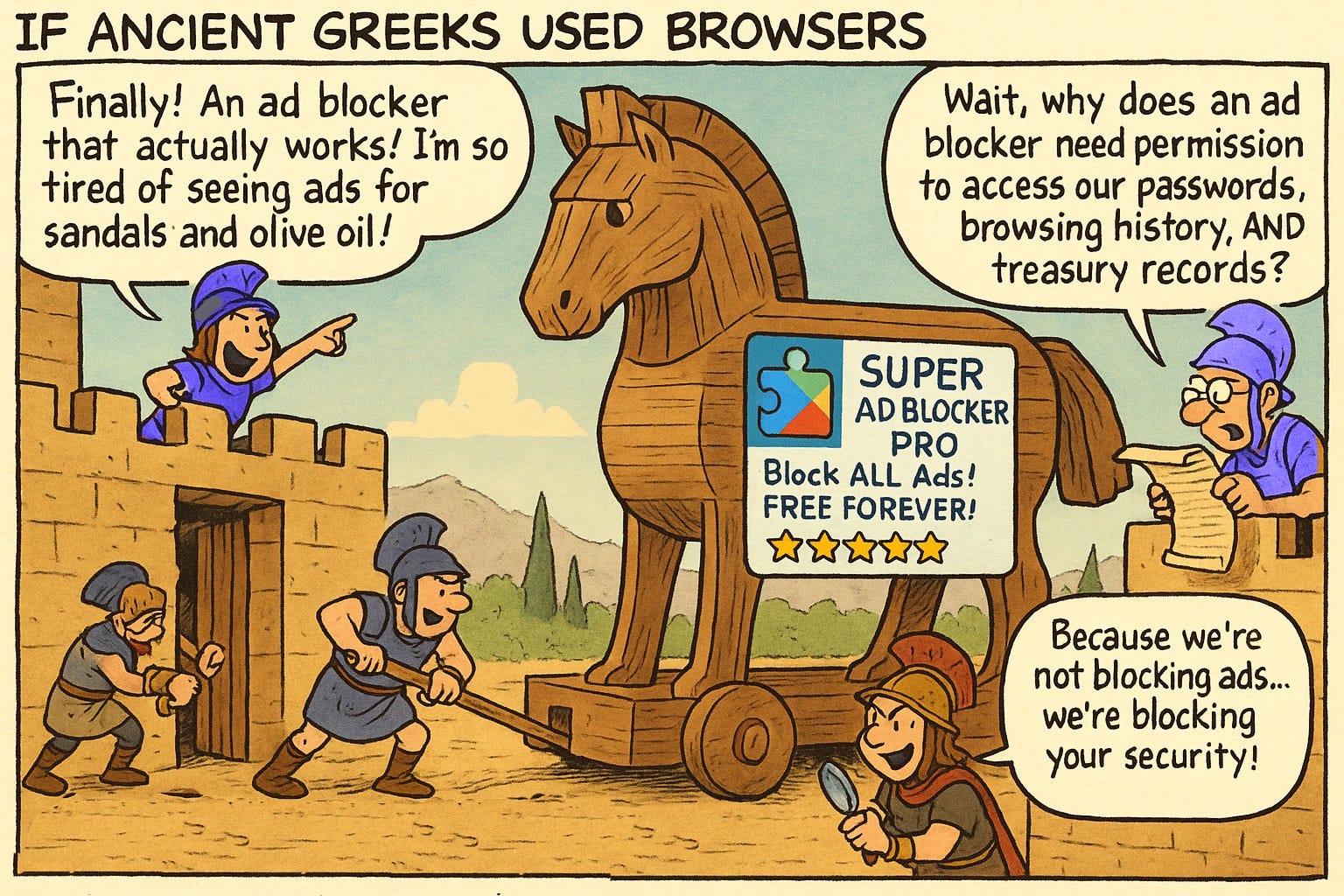
Here’s what makes browser extensions so dangerous: they run with special permissions that regular websites don’t have. When you visit a normal website, your browser protects you by limiting what that site can do. But extensions operate inside your browser with much more power. A malicious extension can:
Read and steal every password you type, even if you’re using a password manager.
See every website you visit and track your entire browsing history.
Inject fake login pages that look identical to the real sites. Redirect your searches to fake websites run by criminals.
Steal your session cookies to log in as you without needing your password. Take screenshots of your screen, including your banking information.
Monitor your clipboard to steal anything you copy and paste.
Change what you see on legitimate websites to trick you into sending money to the wrong place.
And the worst part? Even downloading from official stores like the Chrome Web Store isn’t guaranteed to be safe. Researchers successfully bypassed Google’s security checks and published malicious extensions that sat in the store for months. Real attackers do this constantly.
How Did This Actually Work?
Browser extensions are like apps for your web browser, adding features like ad blocking or password management. When you install one, you grant it permissions to access your browser and websites you visit.
The problem? Most people ignore the permission warnings. That popup saying “This extension can read and change all your data on websites you visit” gets clicked through without a second thought. You just gave that tool permission to see everything you do online.
Criminals exploit this three ways:
Fake extensions from scratch. They create malware disguised as useful tools, give them names similar to popular extensions, buy fake reviews, and wait for downloads.
Trojan horse updates. They build a legitimate extension that actually works, let it get popular with millions of downloads, then push a malicious update months or years later. Users automatically get the infected version and never notice because it still works.
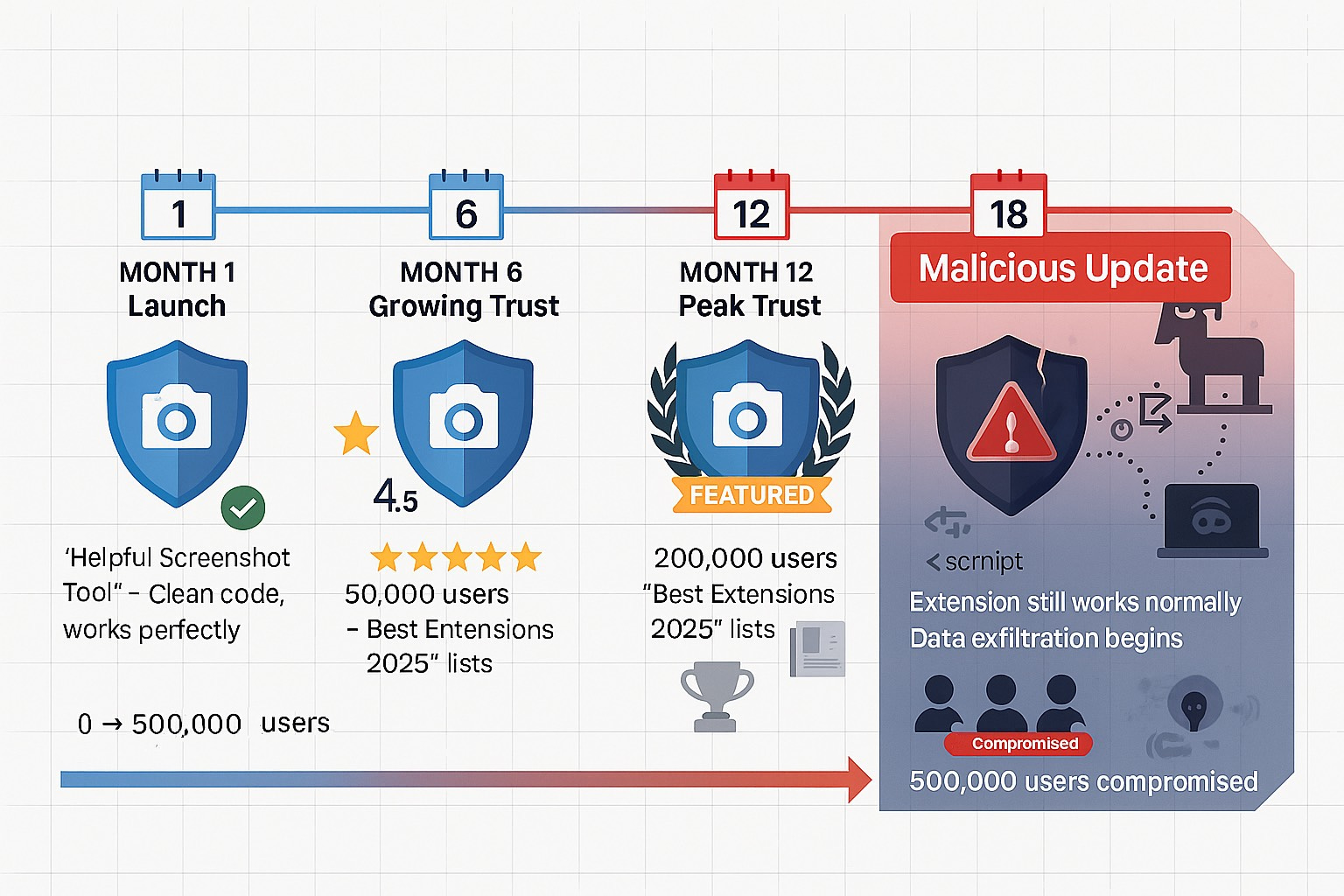
Developer account takeovers. The most sophisticated method. In December 2024, attackers phished legitimate developers, took over their accounts, and pushed malicious updates to millions of users. The extensions worked normally while stealing data in the background.
Once installed, malicious extensions disable browser security, inject invisible tracking into every page you visit, communicate with attacker servers for instructions, and sometimes prevent browser updates to keep you vulnerable.
Common delivery methods include fake versions in search results, phishing emails claiming you need an extension to access a service, fake security warnings while browsing, pirated software bundles, and malicious ads that trick you into installing.
What Can You Do About It?
The good news is that cleaning up malicious extensions is straightforward once you know what to look for. Here’s exactly how to check and remove them:
What Can You Do About It?
For Everyone:
1. Check your installed extensions RIGHT NOW.
How to Check Extensions:
Chrome:   Three dots (top-right) → Extensions → Manage Extensions
Edge:     Three dots (top-right) → Extensions
Firefox:  Hamburger menu (top-right) → Add-ons and themes → Extensions
Safari:   Safari menu → Settings → Extensions tab
For each extension, ask: “Do I remember installing this? Do I use it?” If no to either question, remove it.
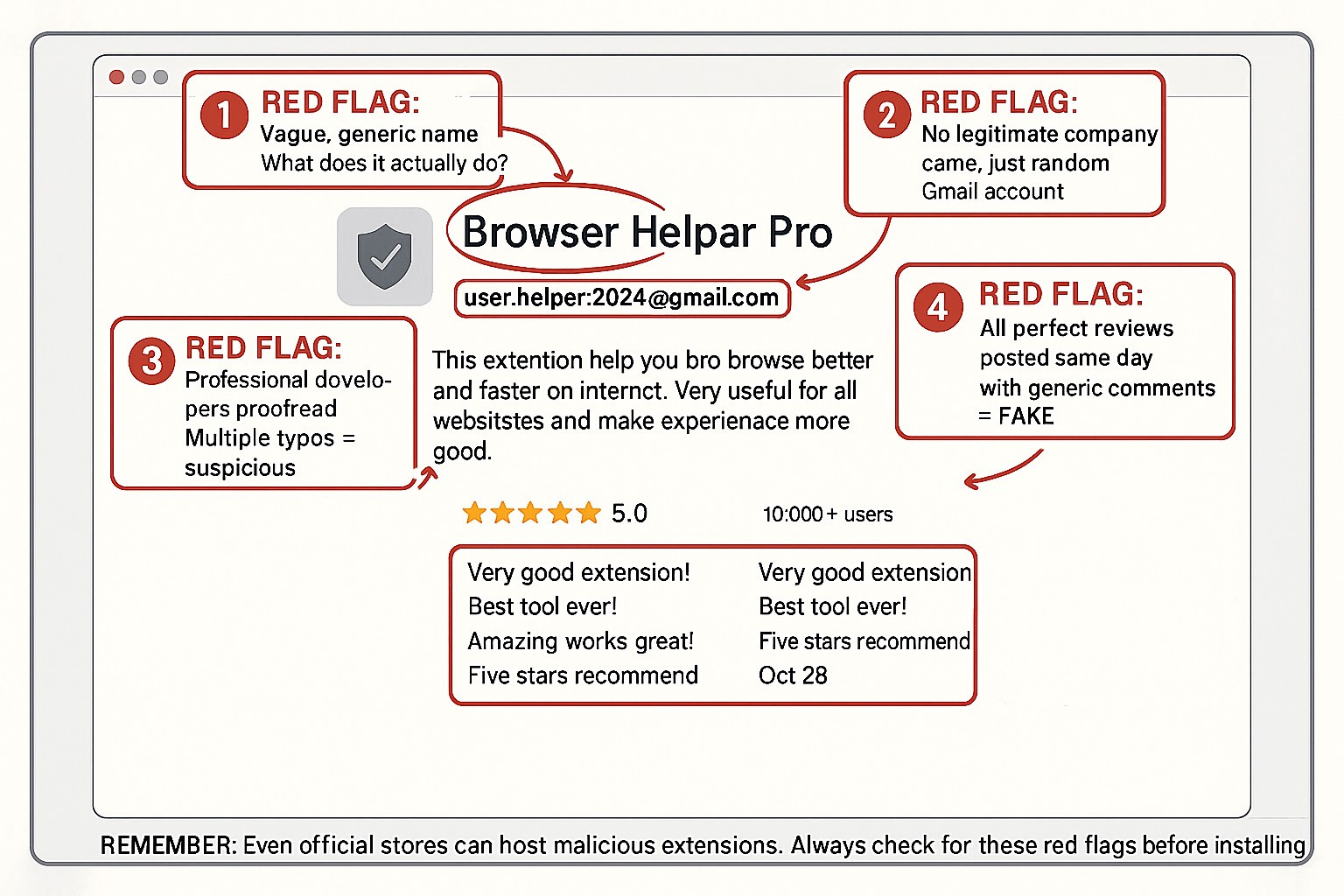
2. Watch for these red flags:
Extensions you don’t recognize
Generic names like “Browser Helper” or “Online Security”
Changed homepage or search engine you didn’t change
Excessive permissions (a screenshot tool doesn’t need to “read and change all your data”)
Poor grammar or suspiciously perfect reviews
3. Only install what you truly need. Ask yourself: “Can I do this without an extension?” Every extension increases your risk.
4. Download only from official stores (Chrome Web Store, Firefox Add-ons, etc.) but know they’re not foolproof.
5. Check the developer. Look them up. Real website? Legitimate reviews? No information = don’t install.
6. Remove unused extensions every few months. You probably installed them for one task and forgot about them.
7. If you think you’re infected:
Remove the extension immediately
Clear your browser cache and cookies
Change passwords for banking and email
Check bank statements for unauthorized charges
Run a full antivirus scan
For Security Professionals:
1. Enforce extension whitelists. Use group policy or MDM to block all extensions except approved ones. Don’t rely on users to make good choices.
2. Audit quarterly. Use EDR tools like Microsoft Defender to monitor installed extensions across your organization. Investigate anything unexpected.
3. Isolate sensitive work. Deploy browser isolation solutions for users handling critical data or accessing sensitive systems.
4. Alert on policy changes. Monitor for modifications to browser policies, especially ExtensionInstallForcelist registry keys that ensure malicious extension persistence.
5. Educate your users. Include extension security in awareness training with real examples. Most people don’t realize extensions are software with deep system access.
6. Restrict permissions. Use enterprise policies to limit what permissions extensions can request, even after installation.
7. Detect persistence mechanisms. Check for registry keys or scheduled tasks that automatically reinstall extensions after removal.
8. Monitor network traffic. Watch for unusual outbound connections from browser processes, especially to recently-registered or suspicious domains.
The Bottom Line
Browser extensions are a major security blind spot that most people completely ignore. They sit in your browser with incredible power to see and manipulate everything you do online, and most people have no idea what they’ve actually installed or what permissions they granted. The solution isn’t to avoid all extensions, but to be extremely selective about what you install, regularly audit what you have installed, and remove anything you don’t actively use. Because that “helpful” tool you installed six months ago might be the reason your bank account gets emptied tomorrow.
Research Sources: GitLab Threat Intelligence, LayerX 2025 Enterprise Browser Extension Security Report, Malwarebytes Threat Intelligence, Awake Security Research, Positive Technologies, Spin.AI Security Research
Last Updated: November 11, 2025