

Prevent This: Choosing the Wrong Authenticator
Multi-Factor Authentication (MFA) is one of the most effective ways to prevent cyber attacks. Are you using the right technologies?

A reader wrote in with a question, she wrote:
“I keep hearing I should turn on two-factor authentication everywhere. I did. But I read that the text message kind is not safe. So what am I supposed to use?”
Thats a great question! Multi-factor authentication (MFA) means proving your identity with something beyond just a password. After you enter your password, the service asks for a second verification: a code, a tap, a fingerprint, or a physical key. The idea is that even if someone steals your password, they can’t get in without that second bit of info.
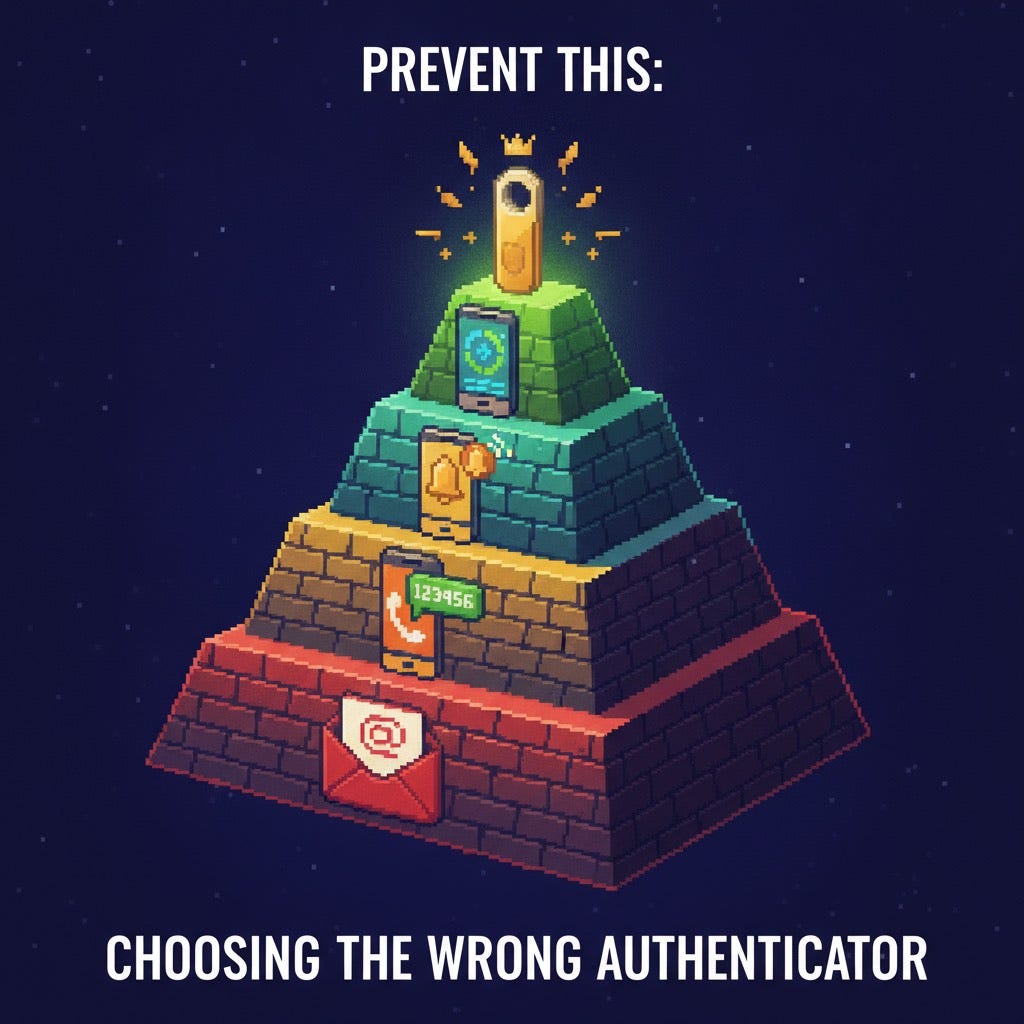
Nothing can completely remove the risk of a cyber attack, but MFA is one of the best techs to help secure you. But, what type of MFA you use matters though. Below is a (2026) tier list, from weakest to strongest:
Tier D: Email Codes
What it is: A code sent to your email inbox when you log in somewhere else.
Cons: Think about it this way: If an attacker is reading your emails, they will get teh same code that you get. And email can also be intercepted, forwarded by malicious inbox rules, or otherwise accessed by the attacker.
Pros: Better than no MFA at all. No app to install.
Tier C: SMS Text Codes
What it is: A code that’s texted to your phone number when you log in.
Pros: Easy to set up and stops most automated attacks.
Cons: Your phone number isn’t as secure as it feels. SIM swapping lets an attacker transfer your number to their device with a phone call to your carrier (we covered this in edition 13). Certain vulnerabilities (SS7 protocol, etc) let attackers intercept text messages without touching your phone at all. In 2025, CISA formally classified SMS-based MFA as “not phishing-resistant.”
Tier B: Push Notifications
What it is: A pop-up on your phone asking you to approve or deny a login attempt. Microsoft Authenticator, Duo, and others use this model.
Pros: Nothing to type and it’s fast. Newer versions use “number matching,” where you must enter a code displayed on the login screen, not just tap approve.
Cons: Without number matching, attackers can bombard you with approval prompts until you tap “Approve” just to make it stop. Microsoft reported blocking 6,000 MFA fatigue attempts per day before adding number matching.
Tier A: Authenticator Apps
What it is: An app on your phone (Microsoft Authenticator, Google Authenticator, Authy) that generates a new six-digit code every 30 seconds. The code is created on your device, not sent over a network.
Pros: Cannot be SIM-swapped. Cannot be intercepted in transit. Works offline. Free.
Cons: Still phishable. A convincing fake login page can ask for your code and relay it to the real site in real time. You also need to back up your accounts; if you lose your phone without a backup, recovery can be painful.
Tier S: Hardware Keys and Passkeys
What it is: A physical security key (like a YubiKey or Google Titan) that you plug into your device, or a passkey stored on your phone that uses your fingerprint or face to authenticate. Both use the FIDO2 standard.
Pros: Phishing-proof. The key verifies the website you are logging into before responding. A fake site can’t trick it because the key checks the domain first. Google has not had a single employee successfully phished since requiring hardware keys in 2017.
Cons: Hard to use for some people, and hardware can fail. Also each key costs about $50, and you should buy two (one backup). Passkeys are free but not yet supported everywhere. Both require a few minutes of initial setup per account.
Honorable Mention: Biometrics
What it is: Your fingerprint, face scan, or iris scan used to verify your identity. Apple Face ID, Windows Hello, and Android fingerprint unlock are the most common examples.
Pros: Cannot be forgotten, lost, or phished. Extremely fast. Already built into most modern phones and laptops.
Cons: Biometrics are typically used to unlock a device or authorize a passkey, not as a standalone MFA method for remote logins. Biometrics work best as the thing that guards the key (unlocking your phone to approve a passkey), not as the key itself.
The Bottom Line
Best place to start: Move your email account to an authenticator app today (Microsoft Authenticator and Google Authenticator are solid). It takes two minutes in your security settings. Everything else flows from email.
Next step: Turn on passkeys wherever they are offered. Google, Apple, Microsoft, Amazon, and PayPal all support them. Your phone’s biometrics replace the code entirely.
Most Secure option: A YubiKey 5 costs $50. Buy two, register both, keep the spare somewhere safe.
If SMS is all you have, keep it. It is still safer than no MFA. Use it where better options are not available, and upgrade everywhere you can.
Never approve a prompt you did not initiate. If your phone buzzes with a login approval and you are not logging in, deny it and change your password immediately.
To the reader who wrote in: you already did the hardest part by turning MFA on. Now spend ten minutes moving your top three accounts up a tier. Start with email and work your way up. Thanks for the question!
Do you have a question that you’d like answered in Prevent This? If so, email us at contact@intruvent.com.
Sources:
CISA: “Implementing Phishing-Resistant MFA” Fact Sheet (2022, updated 2025)
CISA: “More Than a Password” MFA guidance
NIST SP 800-63B: Digital Identity Guidelines, Section 5.1.3 (SMS as restricted authenticator)
Microsoft Digital Defense Report 2023: MFA fatigue attack statistics
Google Security Blog: “Security Keys Neutralize Phishing” (2018, reaffirmed 2024)
FIDO Alliance: Passkey adoption and resources (2026)
Krebs on Security: SIM swapping and SS7 vulnerability coverage (ongoing)
Questions? Feedback? Reply to this email or reach us at contact@intruvent.com