

Prevent This: Browser-Based Attacks
Your browser is the front door to your digital life, and attackers know it. A few simple, low-effort steps can dramatically reduce your risk of falling victim to the most common browser-based threats.

What Happened?
I walked into a holiday party last night expecting good food and small talk. Instead, I was greeted with: “Oh good, you’re here! Can you look at my computer?” No problem. They were hosting our family, it’s the least I could do (Editors Note: We still got the good food and small talk, just slightly later).
Every two seconds, scary pop-ups flooded the screen: “Your computer is infected!” “5 threats detected!” “Click here to fix!” Classic malware symptoms, right? I ran through the usual checklist. Killed suspicious processes, installed Malwarebytes, eliminated a couple of threats. But the pop-ups kept coming.
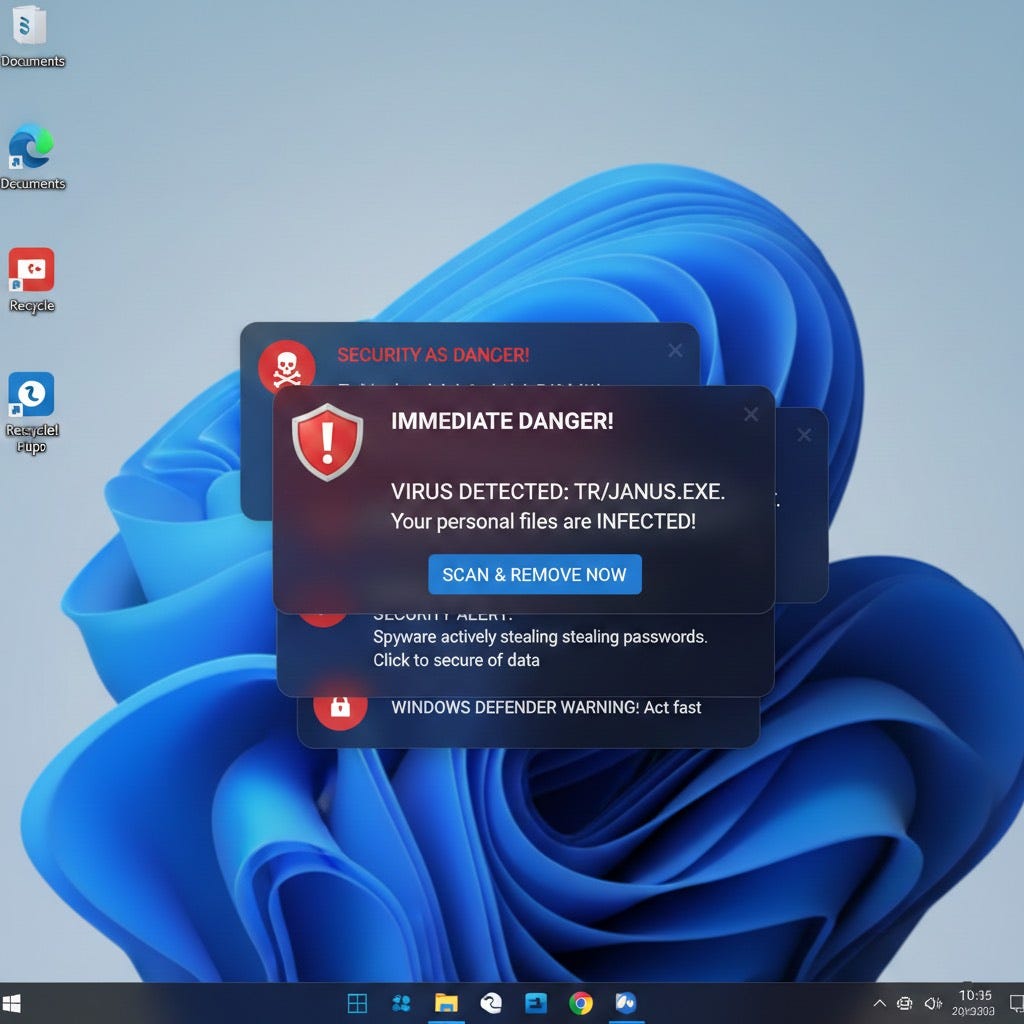
Then it clicked (no pun intended). I opened the browser settings and found the culprit: a sketchy coupon site had been granted permission to send notifications. The user had clicked “Allow” on some discount website last week, and ever since, that site had been blasting fake security warnings directly to their desktop.
One click to revoke that permission, and the “infection” was cured.
It was a good reminder that your browser is often the weakest link in your security chain. We make small decisions every day that slowly open doors for attackers, often without realizing it.
Why Should You Care?
Think about everything you do in your browser: banking, shopping, email, healthcare portals, tax filing, social media, work applications. Your browser is the control panel for your entire digital life.
Attackers know this. Browser-based attacks remain one of the most common and effective ways to compromise everyday users. And here’s the uncomfortable truth: most of these attacks don’t require sophisticated hacking. They rely on us clicking the wrong thing, allowing the wrong permission, or simply not knowing which settings to change.
The good news? Securing your browser doesn’t require technical expertise. A handful of low-hanging fruit steps (things you can do in the next ten minutes) will protect you from the vast majority of browser-based threats.
How Does This Actually Work?
Browser-based attacks come in several flavors, but they generally exploit one of three things:
1. Permissions You Didn’t Realize You Granted
Like my holiday party story. Notification permissions, location access, camera/microphone access, clipboard access. Legitimate sites need these sometimes, but scammers abuse them constantly. That “Click Allow to continue” pop-up? Often a trap.
2. Malicious or Compromised Extensions
Browser extensions are incredibly powerful. They can read everything you type, see every page you visit, and modify what you see on screen. A bad extension can steal passwords, inject ads, or redirect your searches. Even legitimate extensions can be sold to new owners who then inject malicious code.
3. Drive-By Downloads and Malvertising
Some attacks don’t even require you to click anything. Malicious ads (even on legitimate sites) can exploit browser vulnerabilities or trick you into downloading malware disguised as software updates or missing plugins.
4. Phishing and Lookalike Sites
Fake login pages that look identical to your bank, email provider, or favorite shopping site. One wrong click from a search result or email link, and you’re entering your credentials into an attacker’s form.
The common thread? These attacks succeed because of small gaps in browser hygiene.
What Can You Do About It?
Here’s your browser security checklist. None of these require technical expertise, and most take just a few minutes.
1. Audit Your Notification Permissions (Right Now)
This is the lesson from my holiday party adventure. Go check what sites you’ve allowed to send notifications:
Chrome: Settings → Privacy and Security → Site Settings → Notifications
Firefox: Settings → Privacy & Security → Permissions → Notifications
Edge: Settings → Cookies and Site Permissions → Notifications
Safari: Preferences → Websites → Notifications
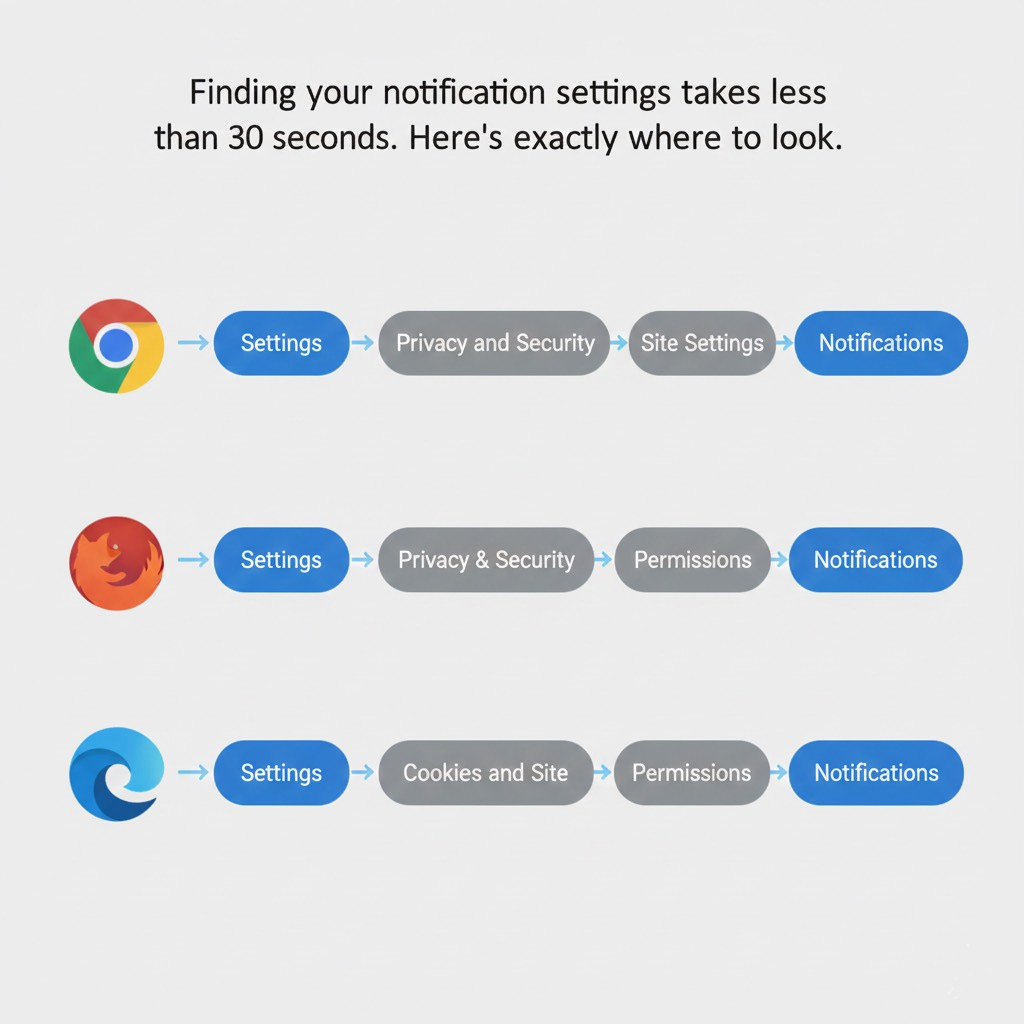
Remove anything you don’t recognize. Better yet, disable notification requests entirely. If a site really needs to alert you, they can send an email.
2. Install a Content Blocker (And Choose Your Browser Wisely)
Ad blockers and script blockers serve as genuine security tools. They block malvertising, prevent tracking scripts, and stop many phishing attempts before they load.
Important note for Chrome users: Google has been rolling out “Manifest V3,” which significantly limits how ad blockers can function. Extensions like uBlock Origin are being phased out or hobbled on Chrome.
Your options:
Switch to Firefox: Still fully supports powerful content blockers like uBlock Origin
Try Brave: Built-in ad and tracker blocking, Chromium-based so it feels familiar
Use uBlock Origin Lite on Chrome: A reduced-functionality version that still helps, but lacks the comprehensive protection of the original
Google has legitimate reasons for the change, but the practical reality is that Firefox or Brave currently offer better support for content blocking.
3. Keep Your Browser Updated
This sounds obvious, but updates frequently patch security vulnerabilities that attackers actively exploit. Turn on automatic updates and don’t ignore those “Restart to update” prompts for days on end.
Most modern browsers update automatically, but double-check:
Chrome: Settings → About Chrome
Firefox: Settings → General → Firefox Updates
Edge: Settings → About Microsoft Edge
4. Minimize Your Extensions
Every extension you install is a potential security risk. Legitimate extensions can be sold to new owners who inject malicious code, or they can be compromised through developer account breaches.
The rule: If you’re not actively using an extension, remove it.
Go through your extension list today. That coupon finder you installed three years ago? That random PDF converter? Gone. Keep only what you genuinely use, and only install extensions from official browser stores.
5. Use a Password Manager
A good password manager serves as a browser security feature in its own right:
Generates strong, unique passwords for every site (so one breach doesn’t compromise everything)
Auto-fills only on legitimate sites (it won’t fill your bank password on a phishing lookalike)
Warns you about reused or compromised passwords
Built-in browser password managers (Chrome, Firefox, Safari) have gotten quite good. Dedicated options like Bitwarden (free) or 1Password offer more features. Either approach beats reusing passwords or keeping them in a spreadsheet.
6. Check for HTTPS (But Understand Its Limits)
That padlock icon in your address bar means your connection to the site is encrypted, which prevents eavesdropping. But the padlock doesn’t mean the site itself is trustworthy.
Phishing sites can (and do) have HTTPS. So yes, avoid entering sensitive information on sites without the padlock, but don’t assume a padlock means you’re safe. Always verify you’re on the correct domain, especially for banking and email.
7. Be Skeptical of Browser Pop-Ups
Legitimate security warnings from your browser are typically minimal and non-urgent. They don’t:
Demand you call a phone number
Claim you have “X viruses” and must act immediately
Prevent you from closing the tab
Ask you to download software to “fix” the problem
If you see any of these, close the tab (use Task Manager if needed), clear your browser cache, and move on. It’s almost certainly a scam.
8. Use Private Browsing Strategically
Private/Incognito mode doesn’t make you anonymous or invisible. What it does:
Prevents your browsing history from being saved locally
Doesn’t retain cookies after you close the window
Keeps searches from influencing your regular profile
Use it for sensitive searches, logging into accounts on shared computers, or when you want a “clean” session without your cookies and history affecting results.
9. Review Site Permissions Periodically
Beyond notifications, sites can request access to your location, camera, microphone, clipboard, and more. Most browsers let you review and revoke these:
Chrome: Settings → Privacy and Security → Site Settings
Firefox: Settings → Privacy & Security → Permissions
Edge: Settings → Cookies and Site Permissions
If a site has permissions you don’t remember granting, or permissions you no longer want to allow, revoke them.
10. Think Before You Click
The most powerful security tool is still between your ears. Before clicking:
On links in emails: Hover to preview the URL. Does it actually go where it claims?
On search results: Scammers buy ads for common searches. The top result isn’t always legitimate.
On “Download” buttons: Many sites have multiple fake download buttons designed to trick you.
On browser prompts: Read what they’re actually asking before clicking Allow.
The Bottom Line
Your browser is simultaneously your most-used application and your most-exposed attack surface. Basic browser hygiene (managing permissions, using a content blocker, keeping things updated, and staying skeptical) will protect you from the vast majority of threats.
You don’t need to become a security expert. You just need to spend ten minutes today reviewing your settings and building a few small habits. Your future self will thank you. So will whoever gets cornered at your next holiday party.
Research Sources: Browser security documentation, real-world incident analysis
Last Updated: December 2025